
Manage your Personal Server
You are the host when you created the server. You decide how it runs. Your friends can play without creating their own server.
Find and start your server
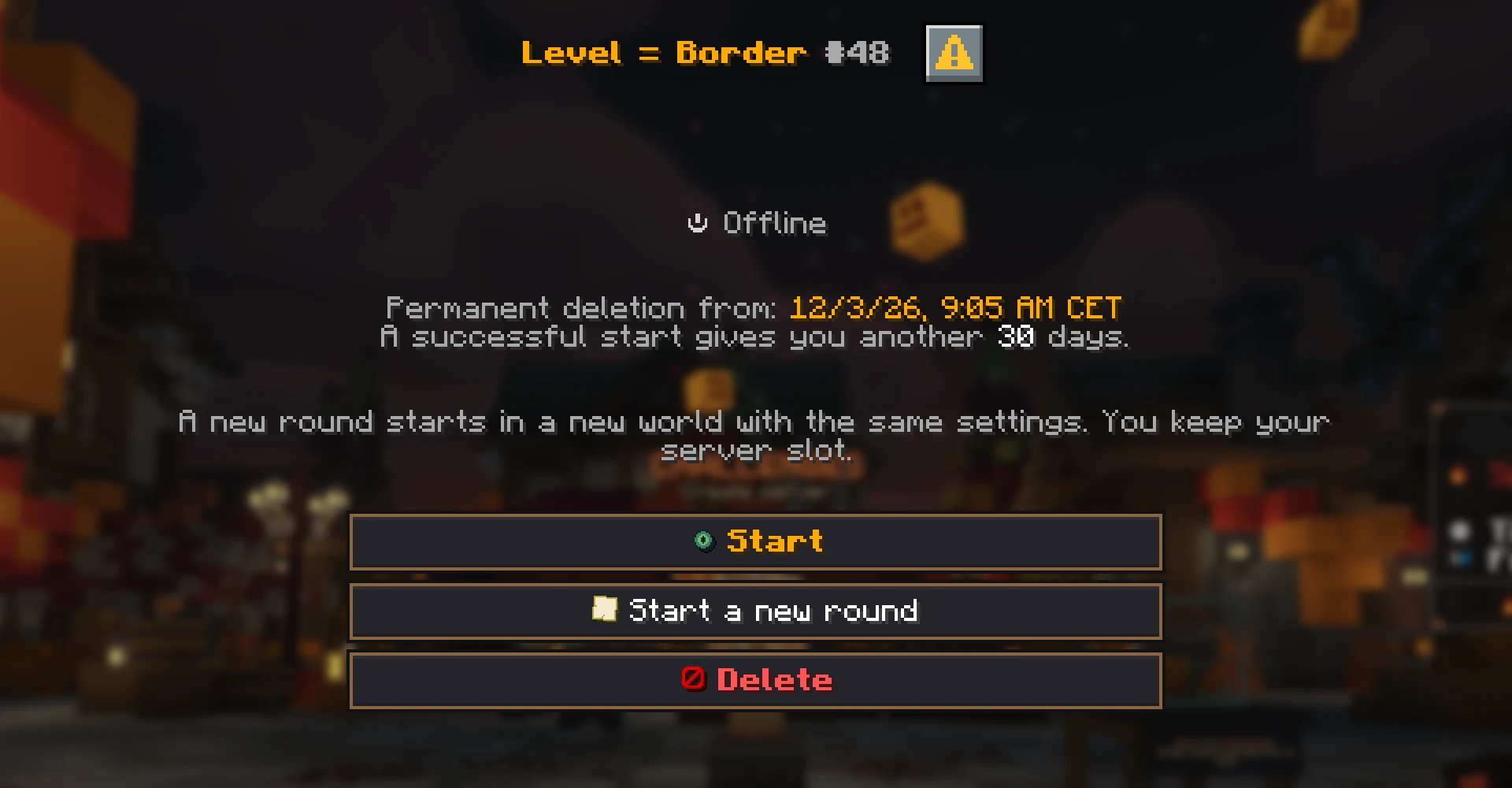
In the lobby, talk to the Personal Server NPC and choose your server. You can see your server and its current state there. When it says Waiting, it is being prepared. Once you get the Server Ready message, it is online and you join through the lobby.
There is no fixed wait time. Check the area again after a moment if your server is still being prepared.
- 1In the lobby, talk to the Personal Server NPC and choose your server.
- 2Choose Start if that action is shown.
- 3Wait for the Server Ready message, then join through the lobby.
What the states mean
| State | What to do |
|---|---|
| Waiting | The server is being prepared. Wait briefly. |
| Online | Join through the lobby. |
| Offline | Start it again. |
| Access locked | Choose a rank with more lifetime or create a new server. |
Stop, delete, and lifetime
Stopping ends the current session. You can start the server later while it is still within its lifetime. Deleting removes the server. If you can reset the run, you can start a new world on this server while keeping its server slot with Start a New World (hard reset) in the reset guide.
Each server start resets the time for that server. For a new server, the time begins when you create it. It is not deleted for inactivity while you play. When everyone leaves, it stops automatically. The lobby shows when you need to start it again and when it will be deleted. If a start fails, those dates stay the same.
More time for your server
Start your server again within 3 days without a rank, 7 with Pro or 14 with Elite. If you wait longer, you cannot start it. You then have another 2, 3 or 5 days to save it with a higher rank before it is deleted. With Legend, it is deleted after 30 days without a start.
A higher rank gives you more time since the last server start, not since the purchase. For example, if you last started your server 4 days ago, Pro allows 7 days between starts and lets you start it again. If the last start was too long ago even for the new rank, the upgrade is not enough. You cannot bring back deleted servers or stop deletion already underway. Check the dates in the lobby.
When something goes wrong
Open the server area again and check the state shown there. Try starting again if a start fails. If the server expired, check a rank upgrade with more lifetime or create a new server. If it cannot be reached before expiry, tell support your Minecraft name and the state shown.