
Updates & announcements
New Challenges, a Clearer View
Break each block type just once or explore chunks made of random blocks. Discover two new challenges, shared Chunk Mob fights and the new challenge selection menu.
- By
- By Sparkane Team
- Published
- Published
On this page
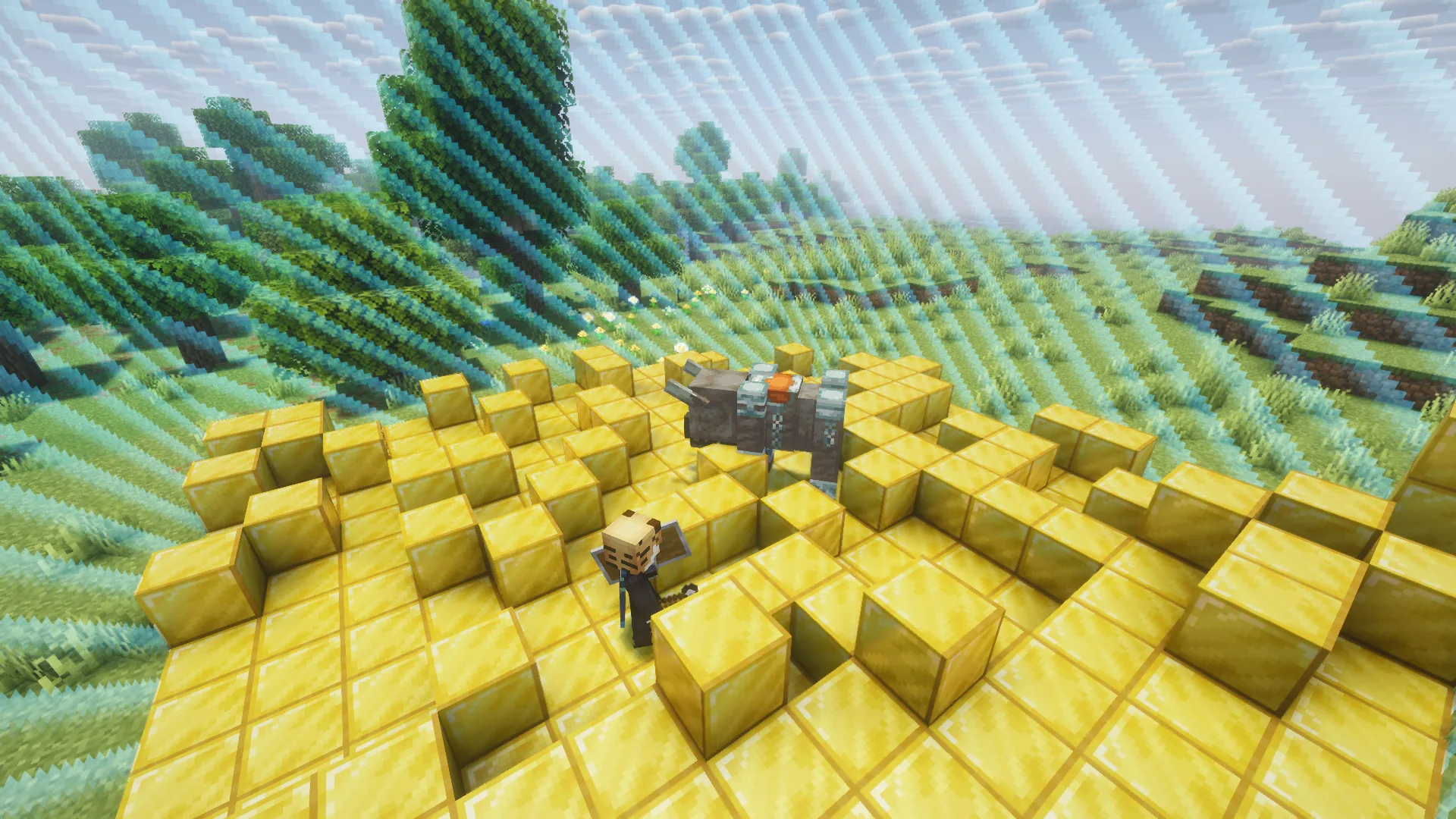
A second oak log could be deadly. The next chunk might have a ravager waiting on a floor of gold. Two new challenges put you to the test. You can also find your next run more easily and keep a clearer view while playing.
Only Break Once: Choose Your Next Block Carefully
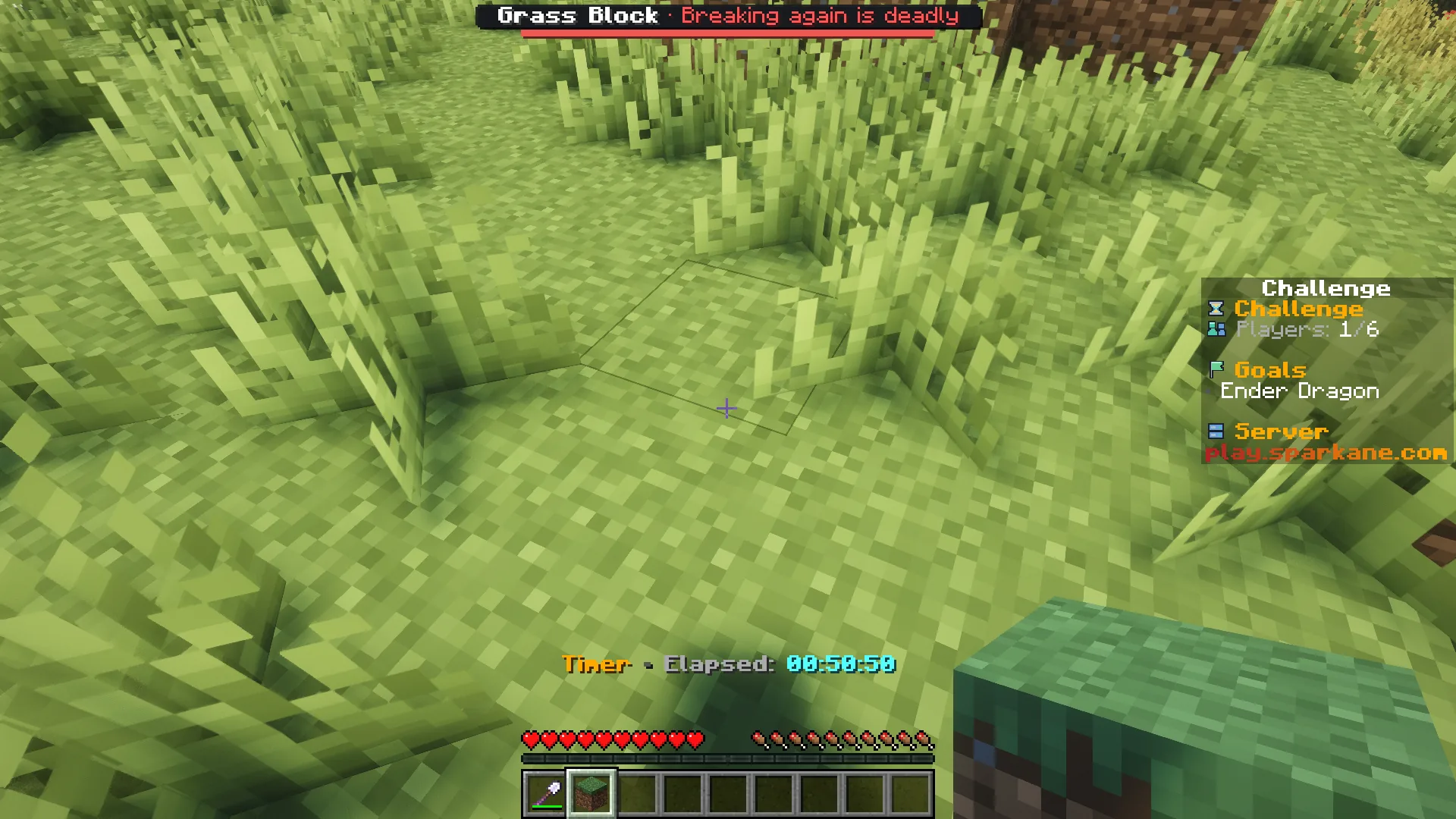
Each player can break each block type just once. Your first oak log is allowed. Try to break a second one and you die. Birch logs count as a different block type. Split up who gathers which supplies.
The bar at the top warns you: green means allowed, red means deadly. Find your used block types under /discoveries. Your list survives deaths and server restarts. Only resetting the run progress lets you break those types again.
Chunk = Block + Mob: New Blocks, One Shared Fight
A chunk is an area of 16 × 16 blocks. In this new challenge, the blocks in each chunk are replaced with one random block type, such as wood or stone. Air, chests and important portal blocks stay intact.
In the Overworld and Nether, a guardian keeps you inside the chunk. Everyone there fights the same mob. Defeat it to leave the chunk. When you return, the blocks stay the same, but a new guardian may appear.
Chunk = Mob: More Variety, Less Confusion
Chunk = Mob now features 84 different mobs instead of twelve. Players in the same chunk fight one guardian together. No extra enemy appears for each player.
Guardians spawn in easier-to-reach places. They and the personal chunk borders are disabled in the End, so you can build bridges freely and fight the Ender Dragon.
Find Your Next Challenge More Easily
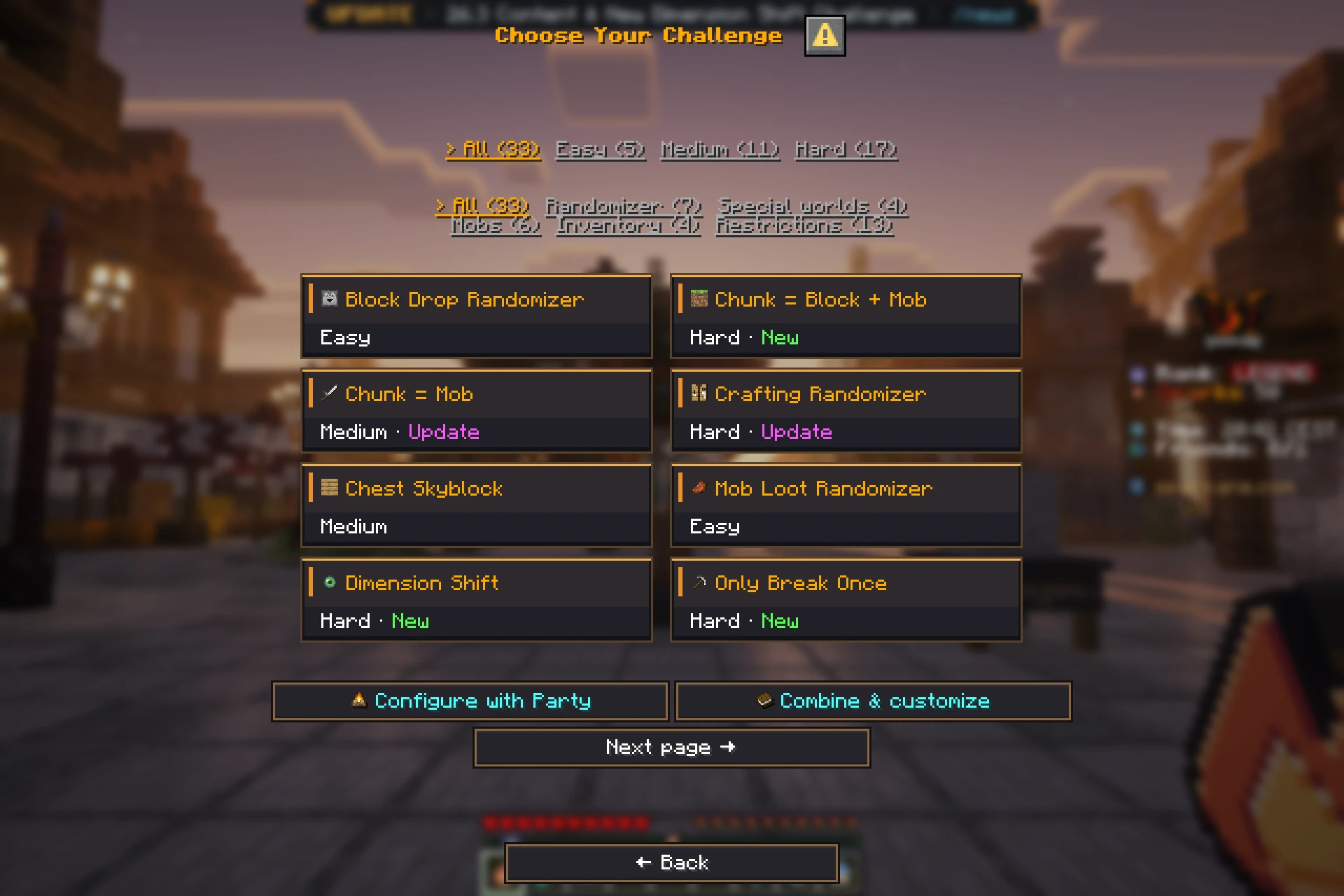
The new challenge selection menu in the Lobby has cards and gameplay previews for 18 challenges. Filter by difficulty and category. Badges highlight new and updated challenges. Graphic previews require the Sparkane resource pack on supported Java clients.
The web configurator now has difficulty and category filters too. Compact cards show previews; open the rules when you need them. Selected challenges stay visible even when they do not match your filter.
The sidebar now shows your challenge name, or “Challenge Mix” with the number of combined challenges. The guardian bar shows health and direction while the timer stays visible. Bedrock players also see nearby borders as turquoise lines.
Improvements to Familiar Challenges
- Know why you died: Death messages now explain deaths caused by certain challenge rules. In Only Break Once, they also name the block type you tried to break a second time.
- Crafting Randomizer: Already discovered results of fixed random recipes appear directly in the result slot the next time you craft.
- More balanced randomizers: Crafting and Mob Loot Randomizer spread results more evenly across material groups. Large numbers of colour or wood variants crowd out other items less often.
- Find your first wood: In Block Drop Randomizer, your wood chance increases after you have tried lots of new block types without a wood drop. Try different block types to find your first wood.
- Hear the Traffic Light: Green, yellow and red have different sounds. Yellow warns you that red is coming. Stay still on red.
- Choose suitable goals: The configurator warns you when your selected rules make a goal unreachable.
Choose Who Can Invite You
By default, anyone can invite you to their server. Under Settings → Social → Personal Server, limit invitations to friends or turn off new invitations. Existing server access stays the same.
Is a server of your own still running when you want to start another or create a new challenge? Choose “Stop server and continue” to stop the running server. You then continue automatically with your selection.
Which Challenge Will You Try First?
Visit the Challenge NPC in the Lobby, pick a preset and start your own server. Or put together your next run in the configurator.
How to start on Sparkane